Tools
Give agents real capabilities through builtin and custom tools, then inspect and operate those capabilities from the CLI and embed loop.
Overview
Tools are how an agent takes action.
Without tools, an agent can still reason and reply. With tools, it can:
-
search
-
inspect systems
-
call product logic
-
trigger workflows
-
operate through managed environments such as computer use
-
knowledge changes what the agent can know
-
tools change what the agent can do
The tool model
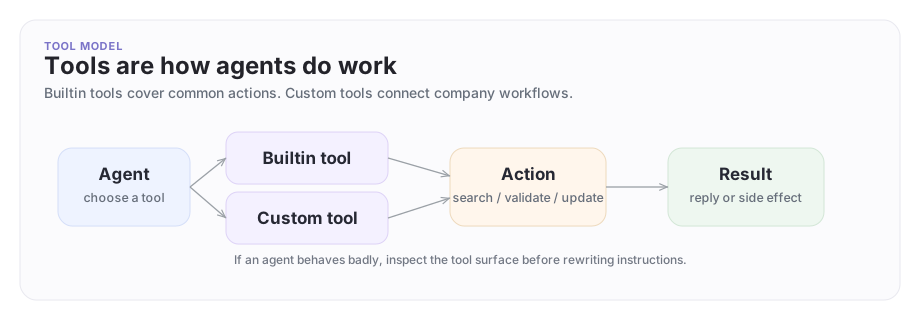
Tools sit between the agent's decision and the outside action. Some are built in. Others are custom and backed by your own workflows or logic.
A concrete example
Suppose Company A exposes a Platform Support Agent to help Company B troubleshoot a complex rollout.
That agent might need:
- a builtin search tool to search approved internal troubleshooting material
- a custom tool that runs a workflow to validate webhook retries
- computer use for a narrow admin task that cannot be expressed as one clean API call
Tools are not random plug-ins. They are the controlled action surface the agent works through.
Built-in tools
| Tool key | What it does |
|---|---|
search |
Search the web for current information |
knowledge_search |
Semantic search across indexed documents and data |
integrations |
Access connected external services (GitHub, Slack, etc.) |
long_term_memory |
Read and write the agent's persistent memory |
artifacts |
Create and manage structured output artifacts |
tasks |
Create, claim, search, and update task records |
skills |
Access the agent's linked skill packages |
sub_agents |
Spawn and manage sub-agent sessions |
wait |
Pause execution until a condition is met |
scheduling |
Schedule future work or reminders |
computer |
Execute commands on the agent's managed computer |
images |
Generate and edit images |
memory |
Global key-value memory storage with TTL |
chart |
Turn a set of numbers into a chart: bars for series over time, a treemap for relative size |
calculate |
Evaluate math expressions exactly in a sandbox, so figures are computed, not guessed |
solution_events |
Emit the custom analytics events declared by the Solution the agent was installed from |
assign_work |
Dispatch direct work items into other agents' durable work queues |
thread_posting |
Post a message, as the agent, into a thread it is a member of |
agent_inspection |
Read-only inspection of other agents' runtime state |
agent_fleet_health |
One-call health rollup across all agents in the org |
agent_update_config |
Limited config writes: change an agent's model, update its identity prompt, or activate or pause a routine |
private_function |
Call selected registered functions on a private service |
mcp_server |
Connect to a remote MCP server for additional tools |
Attach builtin tools to an agent in the CLI or in an AgentTemplate YAML. See Agents for the config format.
Assign work across companies
Use assign_work when one agent needs another agent to handle a self-contained request. The receiving agent processes its own durable work item; it does not receive the sender's conversation or context.
Let a partner send work to the host
A partner can report an incident without waiting for the host to request it, but permission must be set up in that direction:
- Arrange permission on the receiving host agent. Its owner must put an
assigngrant on that agent for the sending partner agent or partner organization. A host's permission to send work to a partner does not give the partner permission to send work back. Both agents must be in the same app and sandbox. - Enable the sender's
assign_workbuiltin tool, using the builtin tool setup below. - Send the host agent ID, complete instructions, and a stable key. For example, these are arguments to the
assign_worktool, not a CLI command:
{
  "agent_id": "<host-agent-id>",
  "instructions": "Review incident INC-104: include the incident details here. Return an acknowledgement and next steps.",
  "idempotency_key": "incident-INC-104:host"
}
- Track the returned
work_item_id. A successful dispatch means the work was accepted, not completed. The sender receives an activity-feed entry when it completes or fails; the durable work item's status and result are the source of truth. An acknowledgement must be returned by the receiving agent—it is not proof that a human read an email.
If dispatch is denied, ask the receiving agent's owner to check the grant on that exact agent and the app/sandbox scope. Removing a grant blocks new assignments; it does not cancel already accepted work.
Collect results from several partners
For a KPI collection, each receiving partner agent must grant the host permission to assign work. The caller then:
- Sends one request per partner agent, with all the context that partner needs.
- Uses a distinct stable key per request, such as
kpi-2026-09:partner-aandkpi-2026-09:partner-b. Retrying the same target and instructions with the same key returns the original item while assignment remains authorized. Reusing a key for different work fails; omitting the key creates a new key on every call. - Keeps each returned work-item ID, reads each item's status/result, and combines the results explicitly. Partners may finish out of order. The caller must decide how to handle failed or missing results and when the collection is complete.
This is not an automatic parallel workflow or join. Two direct assignments create two independent work items, not a shared automation execution. A collection label in the instructions—or a collection_id in a direct-API payload—only correlates requests; it does not schedule work or merge results. The builtin tool accepts agent_id, instructions, and idempotency_key, not a collection_id argument. Direct work-item counts alone do not determine billing or who pays.
Inspect the current tool set
Before you add a new tool, inspect the ones the agent already has:
archastro list agenttools --agent <agent_id>
archastro describe agenttool <tool_id>
This is the fastest way to answer:
- which tools are active?
- which are builtin versus custom?
- what handler or config is behind a custom tool?
This is also the review step that tells you whether a tool should be trusted in the first place.
Add a builtin tool
Builtin tools are the fastest path when the platform already provides the capability you need.
archastro create agenttool --agent <agent_id> \
 --kind builtin \
 --builtin-tool-key search \
 -k support-search
Then activate it:
archastro activate agenttool <tool_id>
Builtin tools are a good default because they keep the setup smaller and easier to review.
Add a custom tool
Use a custom tool when the agent needs a capability that is specific to your workflow or product.
For example, attach a workflow-backed validation tool:
archastro create agenttool --agent <agent_id> \
 --kind custom \
 -n "Validate webhook retries" \
 -d "Checks retry behavior for the acme-billing-webhooks integration" \
 -t workflow_graph \
 --config <workflow_config_id> \
 -k validate-webhook-retries
Then activate it:
archastro activate agenttool <tool_id>
That pattern is useful because the workflow stays visible and reviewable, while the agent gets a clean action surface.
Review the execution surface before activation
A tool is a privileged capability, not a casual plug-in.
Before you activate one, be clear on:
- what the tool actually does
- what workflow or config it points at
- what systems or data it can touch
- whether the action needs additional approval in your deployment
The docs here describe the operator workflow, not an automatic safety guarantee. The safest pattern is to inspect the tool definition, test it through an embed session or a sandbox, then activate it only when the scope is clear.
For custom tools, that means reviewing the exact workflow or config behind the tool before you trust it in a shared or production-facing flow.
Run the tool through an embed session
After the tool is attached, test it through the embed loop from Claude Code or Codex. First install the local plugin from your terminal:
archastro setup
Then invoke embed inside your coding agent:
# Claude Code
/embed

# Codex
$embed

# Cursor
@archagents embed
This is one of the best operational workflows in the platform:
- attach the tool
- embed the agent
- run the exact capability the live agent would use
This is how you debug the action surface without guessing.
One important limit is worth being explicit about: not every attached tool is directly runnable through the local embed workflow.
- builtin tools only auto-run when they resolve to one concrete callable function
- script-backed custom tools can run directly
- workflow-graph custom tools run through the embed path as well, by starting the workflow the tool points at
When you use a custom tool, two fields are worth checking first:
handler_typetells you what kind of execution surface sits behind the toolconfigtells you which workflow-backed definition the tool is pointing at
Use describe agenttool whenever you need that detail.
Update or pause a tool
Tools are live operational surfaces, so it is important to make state explicit.
archastro update agenttool <tool_id> --description "Updated description"
archastro pause agenttool <tool_id>
archastro activate agenttool <tool_id>
If a tool is misbehaving, pause it before chasing prompt changes. Tool problems frequently get misdiagnosed as agent problems.
Best practices
Five rules for working with tools:
- Start with built-in tools when they already solve the job.
- Add custom tools only when the business need is real.
- Back custom tools with visible workflows or narrowly scoped logic.
- Inspect tool state and handler details before debugging the agent.
- Test tools through an embed session or a sandbox before broad rollout.
Where to go next
- Read Skills for reusable coding-agent behavior linked to agents.
- Read Embed for the best local testing loop.
- Read Computer Use when the capability needs a managed workstation instead of a simple tool call.
Need something clearer?
Tell us where this page still falls short.
If a step is confusing, a diagram is misleading, or a workflow needs a better example, send feedback directly and we will tighten it.